How to Cancel ChatGPT Subscription (All Platforms)
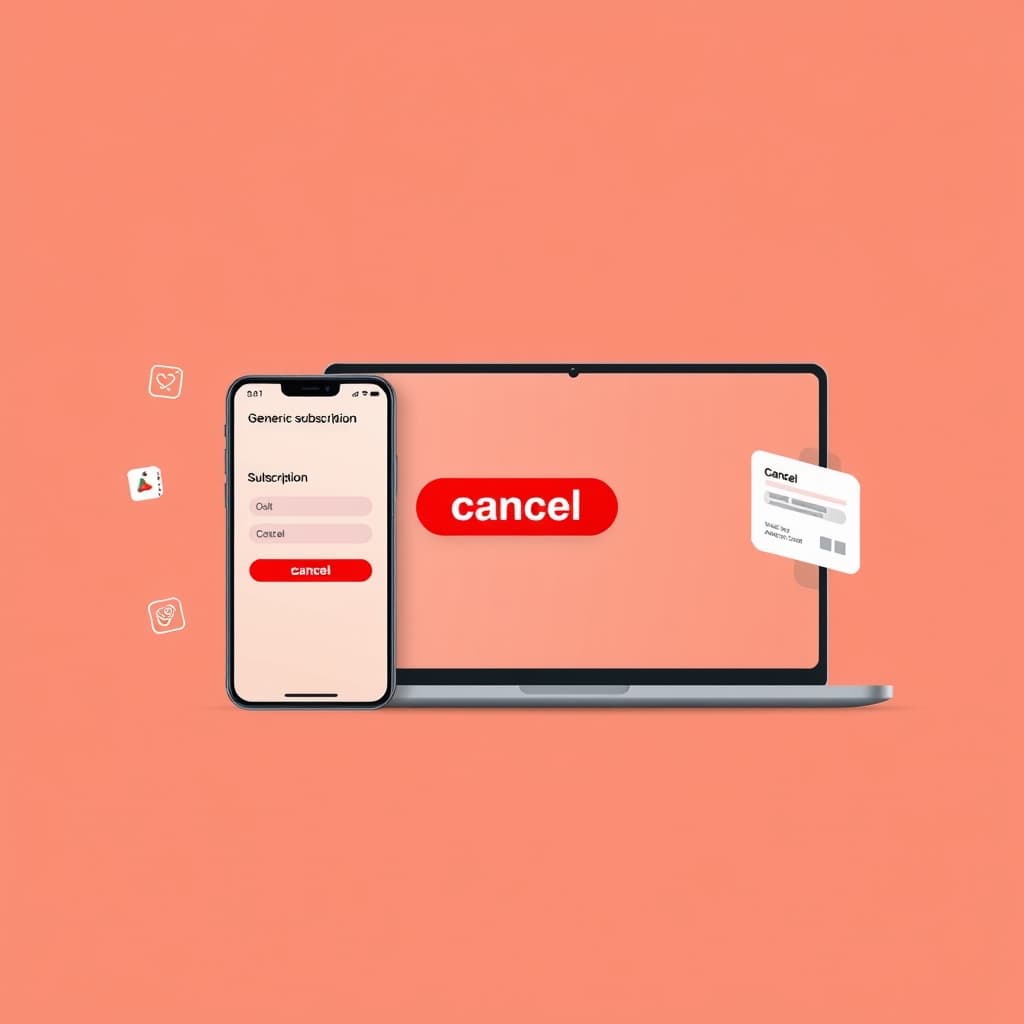
You can cancel a ChatGPT subscription in a couple of minutes—but the exact steps depend on where you originally subscribed. In this guide, you’ll find the right process for web (chatgpt.com), iPhone (Apple App Store), Android (Google Play), and ChatGPT Business.
If you’re in a hurry: find the subscription management page for the store/account that charged you, then hit Cancel subscription and confirm. Your access should continue until the end of your current billing period.
How to cancel ChatGPT subscription on the website (chatgpt.com)
If you bought ChatGPT Plus/Pro/whatever tier through chatgpt.com, you’ll cancel from your account settings.
Step-by-step (desktop web)
- Log in to ChatGPT at https://chatgpt.com/.
- Click your profile icon (top-right).
- Open Settings.
- Go to Billing (sometimes shown as Account → My Plan / Manage).
- Choose the Cancel or Cancel plan option.
- Confirm the cancellation.
What happens after you cancel
- Cancellation typically takes effect after the current billing period ends, so you can usually keep using the service until then.
- You should also see that no further charges will be applied after the cancellation is confirmed.
Quick check: are you on the right account?
If you can’t find the cancellation option, double-check you’re logged in with the same email used when the subscription was purchased. Signing into a different account is one of the most common reasons the Cancel button “isn’t there.”
How to cancel ChatGPT subscription on iPhone (Apple App Store)
If you subscribed via the iOS app, Apple manages the billing. That means you can’t fully cancel from inside ChatGPT.
Cancel from the iPhone Settings app
- Open the Settings app on your iPhone.
- Tap your name at the top.
- Tap Subscriptions.
- Find ChatGPT.
- Tap Cancel Subscription.
- Confirm.
Important notes
- Uninstalling the app won’t cancel your paid plan.
- You’ll generally keep access until the end of your current billing period.
If you want the official Apple/ChatGPT guidance, see OpenAI’s help article: https://help.openai.com/en/articles/7905690-how-do-i-cancel-my-apple-subscription-for-chatgpt-plus-in-the-chatgpt-ios-app
How to cancel ChatGPT subscription on Android (Google Play)
For subscriptions billed through Google Play, you cancel through the Play Store using the same Google account.
Step-by-step (Google Play Store)
- Open the Google Play Store app.
- Make sure you’re signed in with the correct Google account.
- Tap your profile icon.
- Tap Payments & subscriptions → Subscriptions.
- Select ChatGPT.
- Tap Cancel Subscription.
- Follow the prompts to confirm.
Common gotchas
- If you have multiple Google accounts on the device, you might cancel the wrong one.
- Like iOS, removing the app doesn’t cancel the subscription.
For additional context on the cancellation flow, OpenAI also documents platform-specific billing: https://help.openai.com/en/articles/7232927-how-do-i-cancel-my-chatgpt-plus-subscription
How to cancel a ChatGPT Business (Workspace) subscription
Business plans (Workspace) are managed from your organization’s billing settings—not the consumer subscription flow.
Cancel Business from Workspace settings
- Log in to ChatGPT.
- Click your profile icon.
- Choose Workspace settings.
- Open the Billing tab.
- Click the Manage plan dropdown.
- Select Cancel subscription.
Who can cancel?
Usually, only users with the right workspace admin permissions can cancel billing. If you don’t see Workspace settings or Billing, you may need to ask an admin to handle it.
If you can’t find the “Cancel” button (troubleshooting that usually works)
Sometimes you do everything you think is right, and there’s just no red Cancel option. Here are the fixes that solve it most often.
1) Confirm where you’re billed
Ask yourself: did you subscribe through chatgpt.com, Apple, or Google Play?
- Web purchase → cancel in ChatGPT Settings → Billing.
- iPhone purchase → cancel in iOS Settings → Subscriptions.
- Android purchase → cancel in Play Store → Subscriptions.
If you try the web flow while your charge is coming from Apple/Google, the cancellation controls won’t match.
2) Make sure you’re logged into the exact account
Sign out and back in if needed. Look for the email that matches your billing receipts.
3) Check for plan type mismatches
If you’re part of a Business/Workspace and you’re trying to cancel like a personal subscription, you’ll be in the wrong place. Business cancellations are handled under Workspace settings → Billing.
4) Give it a moment after changing devices
If you just purchased or updated your plan recently, sometimes it takes a bit for the billing screen to reflect the change. Wait a few minutes and refresh, then try again.
Worked example: canceling without guessing (a real prompt you can use)
If you’re unsure whether you subscribed via web, Apple, or Google Play, you can figure it out using your payment receipts.
Here’s a concrete approach you can follow:
Step-by-step
- Find your most recent payment receipt.
- Look for the billing source:
- Apple / App Store → iPhone cancellation path
- Google / Play Store → Android cancellation path
- OpenAI / chatgpt.com → web cancellation path
- Then follow the steps in the matching section above.
Example prompt you can paste into ChatGPT
You can use ChatGPT to help you interpret what you found in your receipts (or your subscription screen). Try:
Prompt:
“My subscription was charged by: [Apple / Google Play / chatgpt.com]. Tell me exactly how to cancel it on that platform. Also, what will happen to my access until the end of the billing period?”
Then follow the steps for the matching billing source.
What to expect after cancellation (so you don’t get surprised)
Here’s what most users experience after cancelling:
- Access usually continues until the end of your current billing period.
- You won’t be charged again after cancellation is processed.
- If you subscribed through iOS/Google Play, only the store can stop future renewals.
If your goal is cost control, make sure you cancel at least a day or more before the next billing date (timing can vary). If your provider supports it, you’ll see cancellation timing clearly in the billing UI.
Related ChatGBT tips (to manage your account and billing habits)
When you’re cleaning up subscriptions, it’s also a good time to review how you use AI features so you only pay for what you need.
You might also like:
- ChatGPT tools for productivity
- AI writing and SEO tips from the blog
- Explore AI tool recommendations
FAQ
How to cancel ChatGPT subscription if I subscribed on the website?
Log into ChatGPT, open Settings, then Billing. Choose Cancel or Cancel plan, confirm, and make sure you see that the cancellation is scheduled.
You should still be able to use your plan until the end of the current billing cycle.
How to cancel ChatGPT subscription on iPhone?
Open the iOS Settings app, tap your name, go to Subscriptions, select ChatGPT, then tap Cancel Subscription and confirm.
Deleting the app won’t cancel your subscription—you have to cancel through Apple.
How to cancel ChatGPT subscription on Android?
Open Google Play Store, tap your profile, then Payments & subscriptions → Subscriptions. Pick ChatGPT, tap Cancel Subscription, and follow the confirmation prompts.
Make sure it’s the same Google account that made the purchase.
If I cancel, will I lose access immediately?
Usually, no. Cancellation generally takes effect after your current billing period ends, so you keep access until that date.
If you want to be extra safe, cancel before the next renewal date so the stop is processed in time.
What if I can’t find the cancel button in ChatGPT?
First, verify where you subscribed (web vs iOS vs Google Play). If your subscription is managed by Apple/Google, the cancel button won’t appear in ChatGPT settings.
Also confirm you’re logged in to the correct account used for billing.
Can I cancel a ChatGPT Business subscription?
Yes. Log into ChatGPT and open Workspace settings → Billing → Manage plan → Cancel subscription.
If you don’t have admin permissions, you’ll need a workspace admin to make the change.
Amanda Hetler
Senior Editor