Can ChatGPT Transcribe Audio? What Works & What Doesn’t
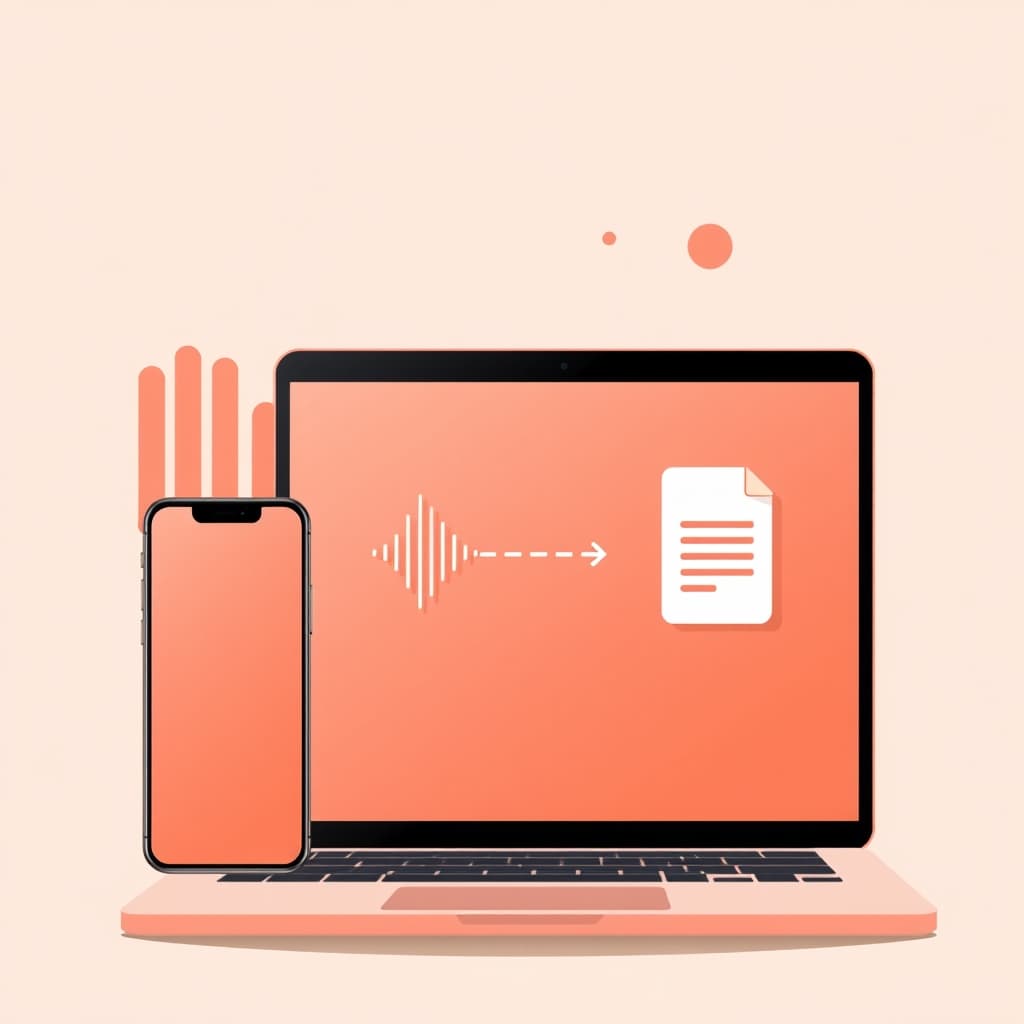
Yes—can chatgpt transcribe audio? In some versions, you can upload an audio file (or record a note) and ChatGPT will return a written transcript you can edit or summarize. But it’s not truly “live” transcription, and outside those app flows you may need Whisper (the dedicated transcription model) instead.
Below, you’ll get a clear, practical breakdown of what works, what doesn’t, and exactly how to get reliable transcripts.
When ChatGPT Can Transcribe Audio (and When It Can’t)
“Can ChatGPT transcribe audio?” depends on how you’re using ChatGPT.
ChatGPT (web/mobile) with GPT-4o file upload: works
If you’re using ChatGPT’s web or mobile experience that supports GPT-4o, you can typically:
- Upload an audio file (examples commonly supported: MP3, WAV, M4A)
- Or record using the microphone option
- Then ChatGPT processes the audio after upload is complete and produces a text transcript
Important: this is not the same thing as live captions. It’s a “send → process → transcript” workflow.
ChatGPT without the right audio feature: not reliably built-in
Some guides you’ll find online say “ChatGPT can transcribe anything.” That’s often oversimplified. If your version/workspace doesn’t include the audio transcription flow, ChatGPT may not generate a transcript from an audio/video upload by itself.
If that happens, you’ll need an alternative:
- Use Whisper directly (commonly via the Whisper API)
- Then paste the transcript into ChatGPT for cleanup, summarization, translation, or formatting
“ChatGPT transcription” vs Whisper
Think of it like this:
- ChatGPT = the conversational layer (edit, summarize, rewrite, translate)
- Whisper = the dedicated audio-to-text transcription engine
In other words, ChatGPT can produce transcripts in supported interfaces, but the underlying transcription quality is powered by Whisper-style audio processing.
Supported Audio Workflows You Can Use Today
Here are the most practical ways to transcribe audio using ChatGPT—plus what to watch out for.
Option 1: Upload an audio file and ask for a transcript
This is the simplest approach.
Step-by-step
- Open ChatGPT in the app version that supports audio uploads/recording (often on supported plans).
- Click the upload button and choose your audio file.
- Wait until upload finishes.
- Ask for the transcript with a clear instruction.
Copy/paste prompt (worked example)
Use something like this after your file finishes uploading:
Transcribe this audio verbatim. Preserve speaker labels if possible. Output in this format:
- Time ranges (e.g., 00:00–00:22)
- Speaker:
- Transcript text Fix spelling, punctuation, and capitalization, but don’t change the words.
If you want a cleaner result for reading:
Transcribe the audio, then produce a second version that removes filler words (“um”, “uh”) while keeping meaning unchanged.
Option 2: Record directly with “ChatGPT record” (meeting/voice notes)
If you see a record feature, it’s designed for capturing and summarizing meetings and voice notes.
OpenAI’s Help Center notes that ChatGPT record is currently available for Plus, Enterprise, Edu, Business, and Pro workspaces, and it’s available only for the macOS desktop app (at the time of writing).
You can use it when:
- You want a quick transcript + summary for a meeting
- You’ll likely review and correct the output
What to do after recording
Even when the transcript is good, you’ll usually want to:
- Correct proper nouns (names, products, acronyms)
- Reformat into bullets, action items, or an email draft
Option 3: Use Whisper (API or tools) when ChatGPT audio upload isn’t available
If you can’t upload audio and get transcripts inside ChatGPT, Whisper is the usual solution.
Workflow:
- Send audio to Whisper to get text
- Paste the transcript into ChatGPT
- Ask ChatGPT to clean it up, structure it, summarize it, or translate it
Authoritative reference: OpenAI Whisper documentation and the Whisper model overview are documented here:
This approach also helps when you need:
- Batch transcription
- More control over formatting
- Consistent output across many files
Concrete before/after (what to improve)
Here’s a realistic scenario.
Before (raw transcript output):
“yeah so we’ll ship it next week um and uh we need approval from legal then after that marketing will launch”
After (prompt for ChatGPT to clean + format):
Take this transcript and:
- remove filler words
- fix capitalization
- keep wording as close as possible
- produce Action Items and Dependencies
After (cleaned & structured):
- Action Items:
- Ship the release next week
- Get approval from Legal
- Coordinate with Marketing for launch
- Dependencies:
- Legal approval required before Marketing launch
You get the best of both worlds: Whisper handles audio-to-text; ChatGPT handles “make it useful.”
Tips for Better Transcription Quality (So You Don’t Waste Time)
Even with strong tools, audio quality and prompt clarity matter.
Use clear audio and reduce background noise
Transcription accuracy drops when:
- Multiple voices overlap
- Music is loud
- Someone talks from another room
- Audio is clipped/distorted
If you can, do one of these:
- Re-record in a quieter space
- Use a better mic (or earbuds with a mic)
- Export your audio at a reasonable quality (MP3 vs WAV won’t magically fix noise, but clarity helps)
Tell ChatGPT what format you want
Good transcripts are part text, part structure.
Try specifying:
- Verbatim vs cleaned
- Speaker labels (if you care)
- Time ranges (helpful for reviewing)
- Bullet summaries vs full transcript
Expect mistakes—plan a quick review
OpenAI also cautions that transcriptions may contain errors, so you should check important details.
A good routine:
- Skim the transcript once end-to-end
- Then search for key terms (names, dates, numbers)
- Correct them in the transcript text before you summarize
For long audio, split or chunk
If the transcript is messy or incomplete, chunking helps.
Practical approach:
- Split your file by topic (e.g., each agenda item)
- Transcribe chunk-by-chunk
- Ask ChatGPT to merge transcripts and reconcile repeated topics
Translation and multilingual audio
If you need translation, say so explicitly:
Transcribe and translate into English. Keep a bilingual style: original line, then English translation.
This produces better results than asking for “translate” without telling it what layout you want.
Common “Why Didn’t It Work?” Problems
Here are the most frequent reasons people ask this question and get unsatisfying results.
Problem: “My upload didn’t create a transcript”
Possible causes:
- You’re on a ChatGPT version that doesn’t support audio transcription in the interface you’re using
- The file format/codec isn’t accepted
- The audio is too long for the current processing constraints
Fix:
- Try a supported format (MP3/WAV/M4A)
- Reduce length (chunk it)
- If needed, use Whisper to transcribe first, then paste into ChatGPT
Problem: “It’s not live transcription”
That’s expected behavior for many ChatGPT transcription flows. Upload-based transcription generally means:
- You don’t get a rolling transcript
- You get output after processing completes
If you need real-time captions, you’ll likely want a different tool designed for live speech-to-text.
Problem: “Speakers are wrong”
Speaker attribution can be inconsistent when:
- microphones are uneven
- voices are similar
- there’s background noise
Fix:
- Tell ChatGPT to label speakers as Speaker A/B if it can’t confirm names
- Or provide a quick hint after transcription (e.g., “Speaker A is Alex”)
Using Transcripts in Real Work (Not Just Text)
Once you have your transcript, ChatGPT becomes your “second brain” for the content.
Turn transcripts into meeting notes
Prompt:
Summarize the transcript into:
- Decisions
- Action items (with owners)
- Open questions
- Risks/constraints
Create follow-up email drafts
Prompt:
Write a concise follow-up email to the attendees summarizing decisions and next steps. Use a friendly professional tone.
Build searchable notes
Prompt:
Extract all dates, deadlines, and responsibilities. Output as a table.
These prompts are where most people get the “real value,” not the transcription itself.
Where Tools Like ChatGBT Fit In
If you’re looking for a quick way to manage AI workflows (including writing, prompts, and productivity tasks around transcripts), you can explore our library of tools here: /tools.
And if your real goal is turning audio into usable outputs, you’ll likely want prompt-focused workflows. Browse our AI writing/automation tips in the /blog section too.
If you want a specialized workflow starter, you can also check our suggestions list: /suggest-tool.
FAQ
Can ChatGPT transcribe audio files directly?
Yes, in supported ChatGPT app versions you can upload an audio file and receive a written transcript. The transcript usually appears after the upload finishes, so it’s not typically “live” transcription.
If your interface doesn’t support audio transcription, you’ll need Whisper (or another speech-to-text system) and then feed the transcript into ChatGPT for cleanup and summaries.
What audio formats does ChatGPT support for transcription?
Commonly supported formats include MP3, WAV, and M4A. If you don’t see transcription happen after upload, try converting the file to one of those formats and then re-upload.
Is ChatGPT transcription the same as Whisper?
Not exactly. Whisper is the dedicated transcription model that turns speech into text. ChatGPT can output transcripts when the interface supports it, but it’s still relying on transcription capabilities similar to Whisper under the hood.
Can ChatGPT transcribe meetings with “record”?
If your workspace and platform support it, ChatGPT record can capture and summarize meetings and voice notes. OpenAI notes that record availability is currently limited by plan and platform (macOS desktop, for specified workspaces).
How do I get better transcripts from noisy audio?
Use clearer audio, reduce background noise, and split long recordings into smaller chunks. Then be specific in your prompt about whether you want verbatim transcription, cleaned text, time ranges, and speaker labels.
What should I do if the transcript has errors?
Do a quick review for names, numbers, and dates, then re-prompt ChatGPT with targeted corrections (e.g., “replace Legal with LEXAL” or “speaker A said…”). If accuracy is critical, consider running transcription through Whisper first and then asking ChatGPT to format the output.
Amanda Hetler
Senior Editor